The R Studio Interface
The Interface
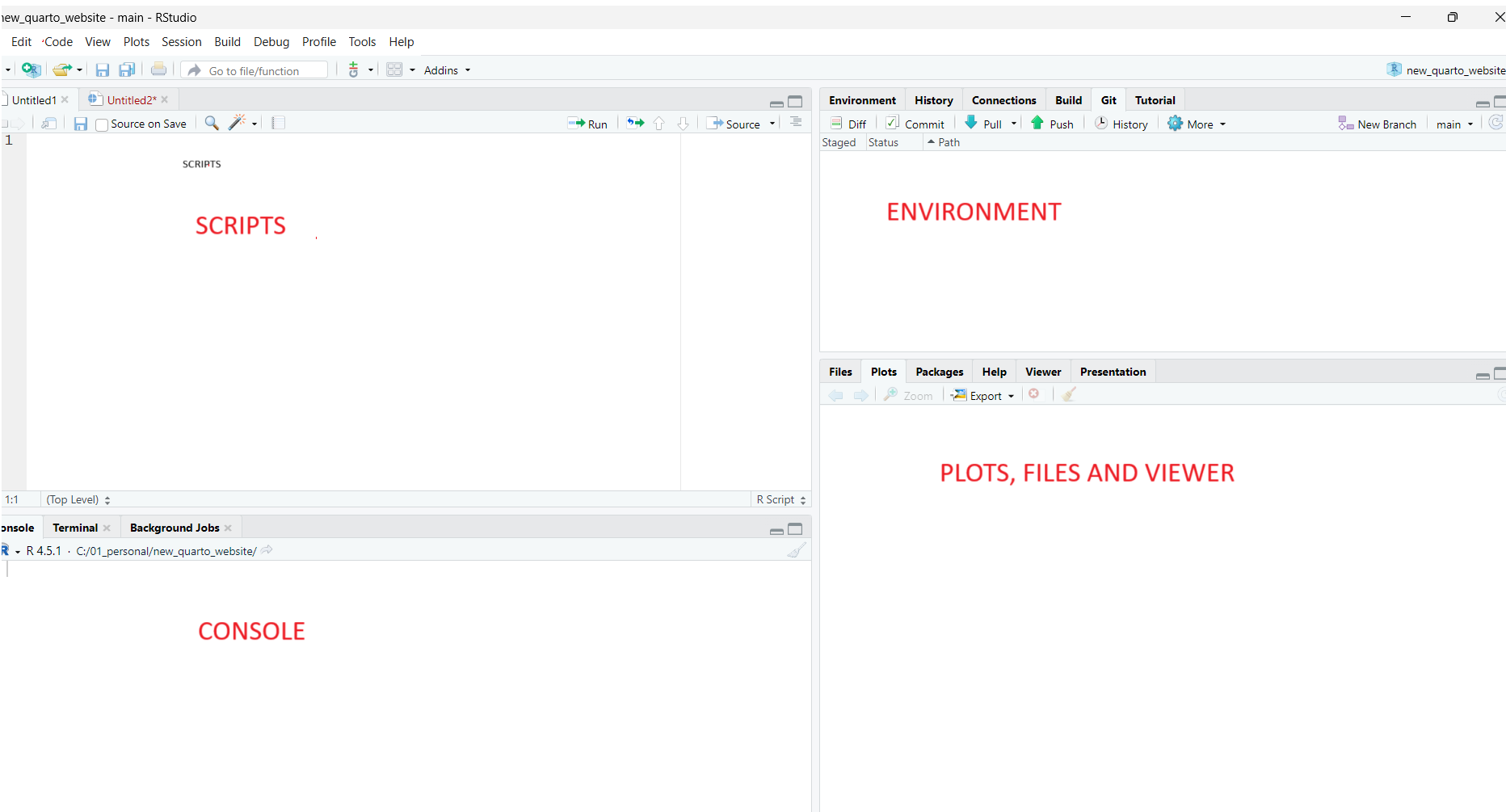
SCRIPTING WINDOW
This is your workhorse. This is where you actually write code.
Code you write here can be saved as a script and can be used later.
NOTE
ENTER merely goes to the next line in the scripting window.
In order to run the code you need to highlight the code you want to run and click Cntrl+Enter (Or use the mouse to click “run”.
ENVIRONMENT
All the datasets and variables you load into R can be found from the Environment Tab. We will discuss this in length further. For now remember that you can see your datasets and variables inside this window.
FILES
This window can be toggled to show you the different files available on your PC similar to a browser. You can also view any plots or figures in this tab.
CONSOLE
For the beginner level just be aware that code you run is displayed in the console. Many outputs, errors etc can be seen in the console panel. We do NOT normally type inside the console on a day to day basis. There are a few use cases where one would type into the console but this is not the normal. Usually typing is done in the scripting window and not the console. More advanced users may also access the terminal from this window. We will look at this in further modules.
Exercise
Install R and then identify all the panels correctly.